You should normally restart a frozen robot vacuum cleaner first, use a Wi-Fi reset for app or network trouble, and save a factory reset for a true fresh start. That order keeps your maps and schedules safe while you still fix most glitches. A full wipe is rarely the first move, even when the robot looks completely stuck.
Warning: A robot vacuum factory reset may remove saved maps, schedules, Wi-Fi details, room names, no-go zones, and other settings. Treat it as the last option, not the default fix.
Now, this guide shows you how to reset a robot vacuum cleaner and what each one deletes. It also gives button and app steps for Roomba, Roborock, Shark, Eufy, Ecovacs, Dreame, and Narwal robots.
TABLE OF CONTENTS Quickly jump to a section
- Which Robot Vacuum Reset Do You Actually Need?
- Before You Reset Your Robotic Vacuum Cleaner
- How to Restart a Robot Vacuum Without Losing Your Settings
- How to Reset a Robot Vacuum’s Wi-Fi
- How to Factory Reset a Robot Vacuum Cleaner
- How to Reset Popular Robot Vacuum Cleaner Brands
- What to Do After Resetting Your Robot Vacuum
- Robot Vacuum Still Not Working After a Reset?
- FAQs About Resetting a Robot Vacuum
Which Robot Vacuum Reset Do You Actually Need?
You see, most people searching how to reset a robot vacuum do not need a full wipe. You usually have a frozen robot, a dropped Wi-Fi link, a broken map, or a unit you plan to sell. So, you must pick the lightest “soft reset” that matches the problem, because the wrong one can erase hours of mapping work.
| Your problem | Reset to try | What you may lose |
|---|---|---|
| Robot frozen or not responding | Restart / reboot | Nothing |
| App or Wi-Fi will not connect | Wi-Fi reset | Wi-Fi connection only |
| Wrong or broken map | Map reset / remap | Saved map |
| Persistent software errors | Factory reset | Most or all settings |
| Selling or giving it away | Factory reset | Everything (check account info after reset to confirm) |
Buyer’s Guide: Best robot vacuums
Before You Reset Your Robotic Vacuum Cleaner
A reset only fixes software problems, which means it can’t repair a tangled brush, a dirty sensor, a worn battery, or a damaged dock.
- Charge it: Okay, you must put the robot on the dock until the battery is at least half full, like 30-50%. Some factory restores take several minutes, and a low battery can stall halfway.
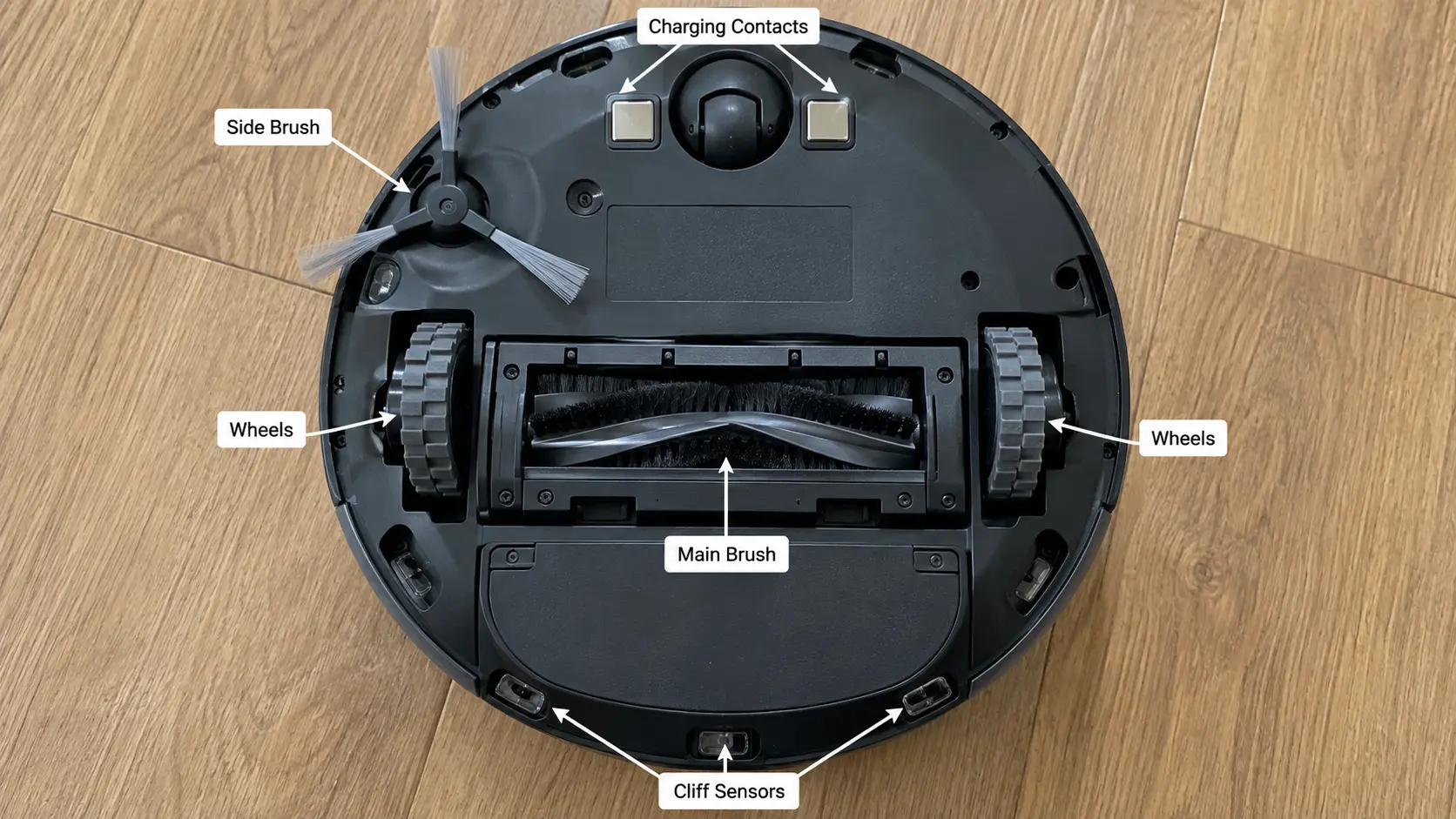
- Clear the obvious blockages: First, you need to flip the robot and pull hair from the main brush, side brush, and both drive wheels. A wheel that cannot spin will make the robot look “frozen” even when the software is fine.
- Clean the sensors and contacts: Wipe cliff sensors, the bumper window, the charging pads on the robot, and the matching pads on the dock. Use a dry microfiber cloth, not a wet wipe that leaves film.
- Write down what you will miss: Note schedules, no-go zones, room names, suction preferences, and mopping settings. A phone photo of the app map is a cheap backup if the app has no official map export.
- Confirm the exact model: The model number is usually on a sticker under the robot or inside the dustbin lid. “Roomba” or “Roborock” is not enough, because i7, j7, and Max 800 do not share the same button hold.
- Check for map backup in the app: Some iRobot models let you save Imprint Smart Maps during a factory reset. Roborock, Dreame, Ecovacs, and Narwal apps sometimes store maps in the cloud. So, you must look before you wipe.
How to Restart a Robot Vacuum Without Losing Your Settings
A robot vacuum restart is the first fix you should try, and it’s the one people tend to skip. It clears small software glitches while your maps and schedules stay in place, which makes it the best way to reset a robot vacuum without losing the map.
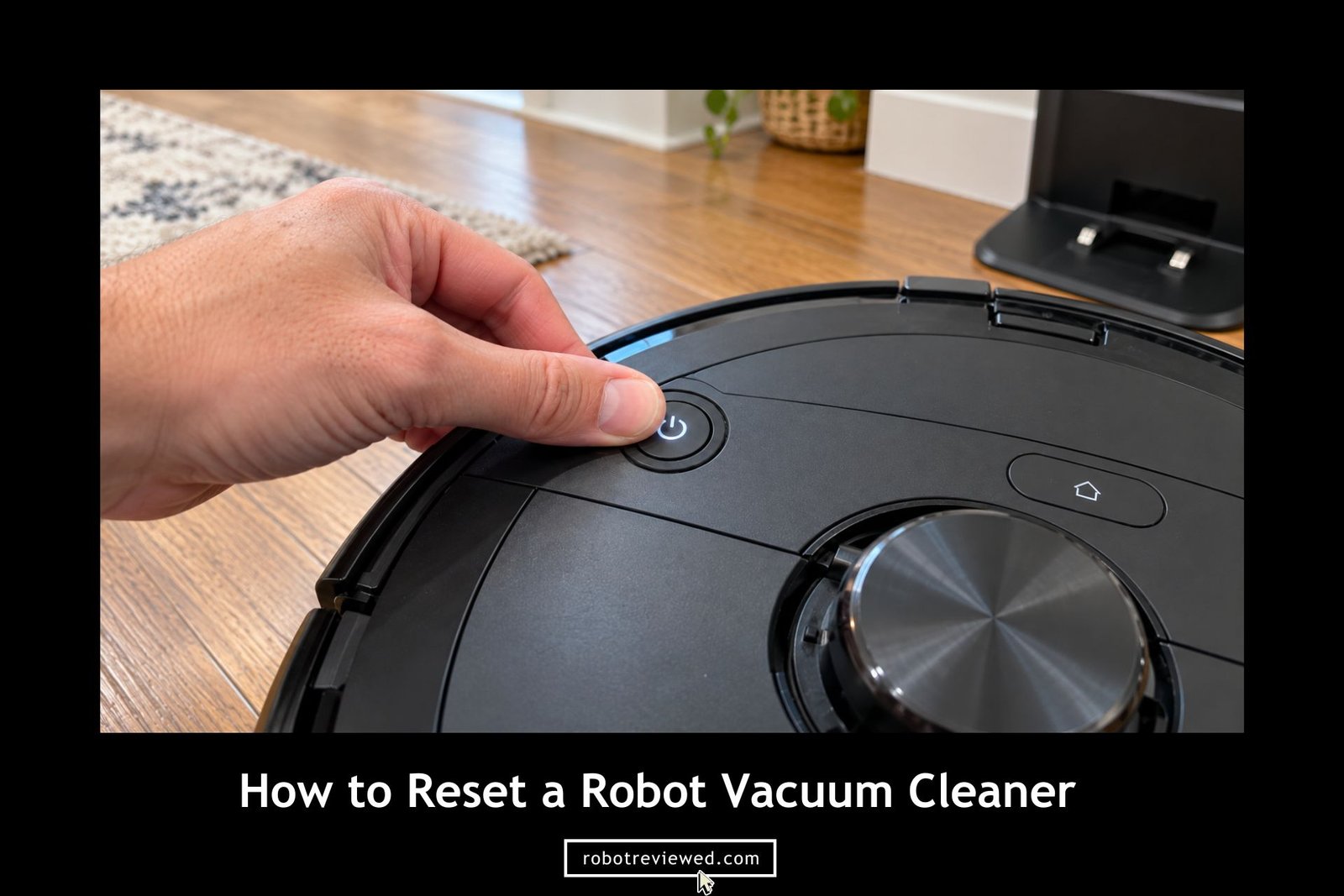
Restart using the robot’s power controls
Okay, every robotic vacuum cleaner brand does this a little differently, so treat the hold times below as a guide and check your manual if nothing happens.
- Take the robot off the charging dock so it is not pulling power from the base.
- Press and hold the main CLEAN, POWER, or Dock button until the lights go out or you hear a shutdown tone.
- Wait 10 to 20 seconds with the robot fully off. That pause lets residual charge drain from the board.
- Press the same button again, or place the robot back on the dock, to turn it on.
- Wait until the light ring stops spinning, the voice prompt finishes, or the app shows the robot online.
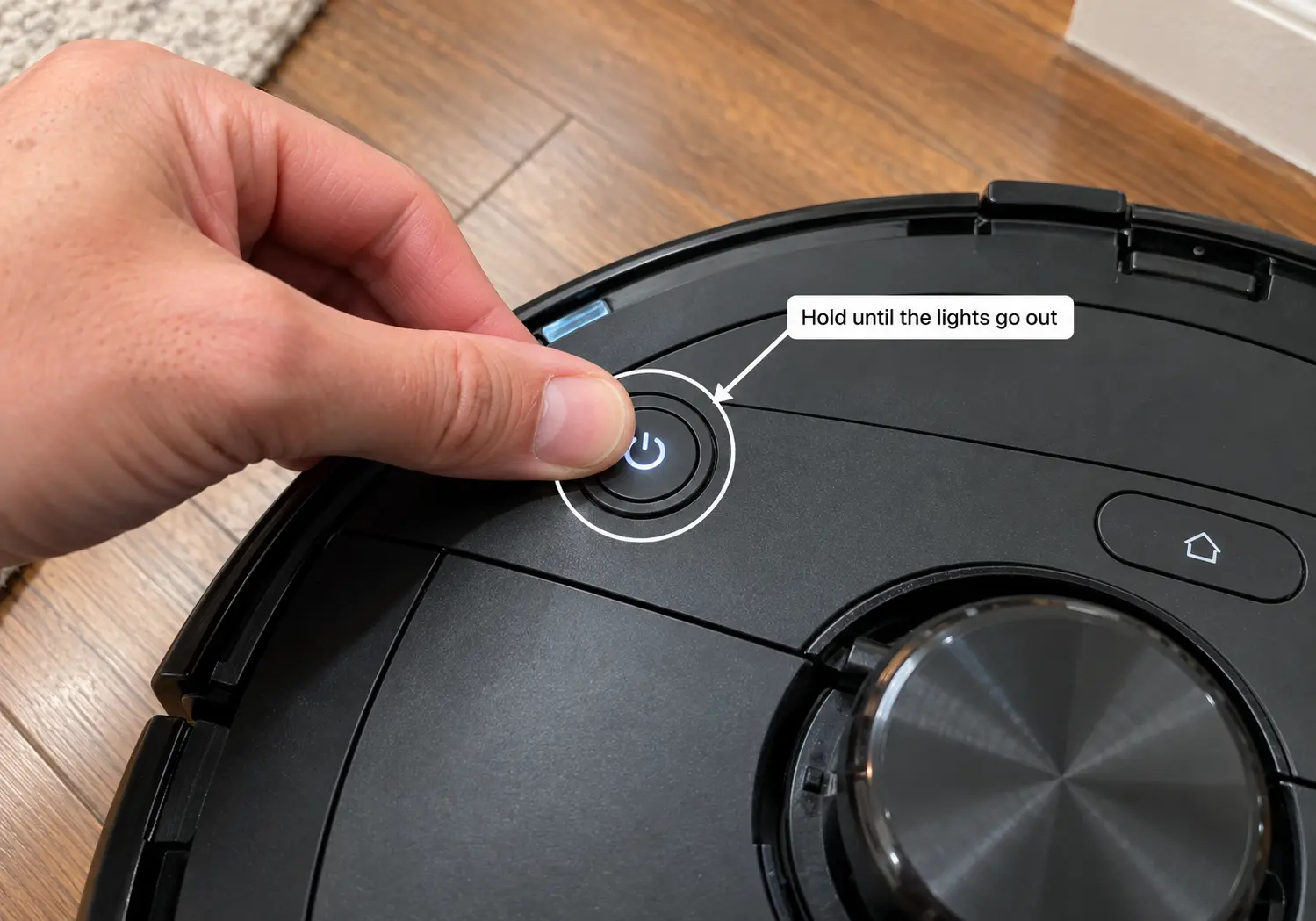
Typical hold times, if you know the brand:
- iRobot Roomba i Series and s Series: hold CLEAN about 20 seconds off the dock. The light ring swirls white; a full reboot can take up to 90 seconds.
- Roomba j Series and Combo 10 Max: hold CLEAN about 9 seconds.
- Wi-Fi Roomba 800 and 900 Series: hold CLEAN about 10 seconds.
- Newer Roomba Mini, 100/1000, 200/2000, Plus, and Max series: hold POWER 10 seconds off the dock, then hold it 3 seconds to turn it back on.
- Shark IQ, Matrix, and POWERDETECT: take it off the base, hold DOCK for 5–7 seconds to power off, then slide it back onto the base.
- Older Roomba 500/600/700 with Dock and Spot buttons: hold HOME + SPOT for 10 seconds until you hear the reboot tone.
Restart using the robotic vacuum app
Some apps have a restart option, and plenty of them don’t, so don’t worry if you can’t find one. When it exists, it saves you from holding buttons and guessing the timing.
- iRobot (new Roomba Home app): open the Robots tab, tap the three dots at the top right, then Reboot Roomba, and confirm Reboot Roomba.
- iRobot (classic iRobot HOME app): go to Product Settings → Reboot Roomba → Reboot Roomba.
- Other brands: You can check in Device Settings, Product Settings, or a three-dot menu for Reboot, Restart, or Power Off. Not every Roborock, Eufy, or Shark model offers an in-app reboot. So, if you cannot find it, use the buttons on the robot.
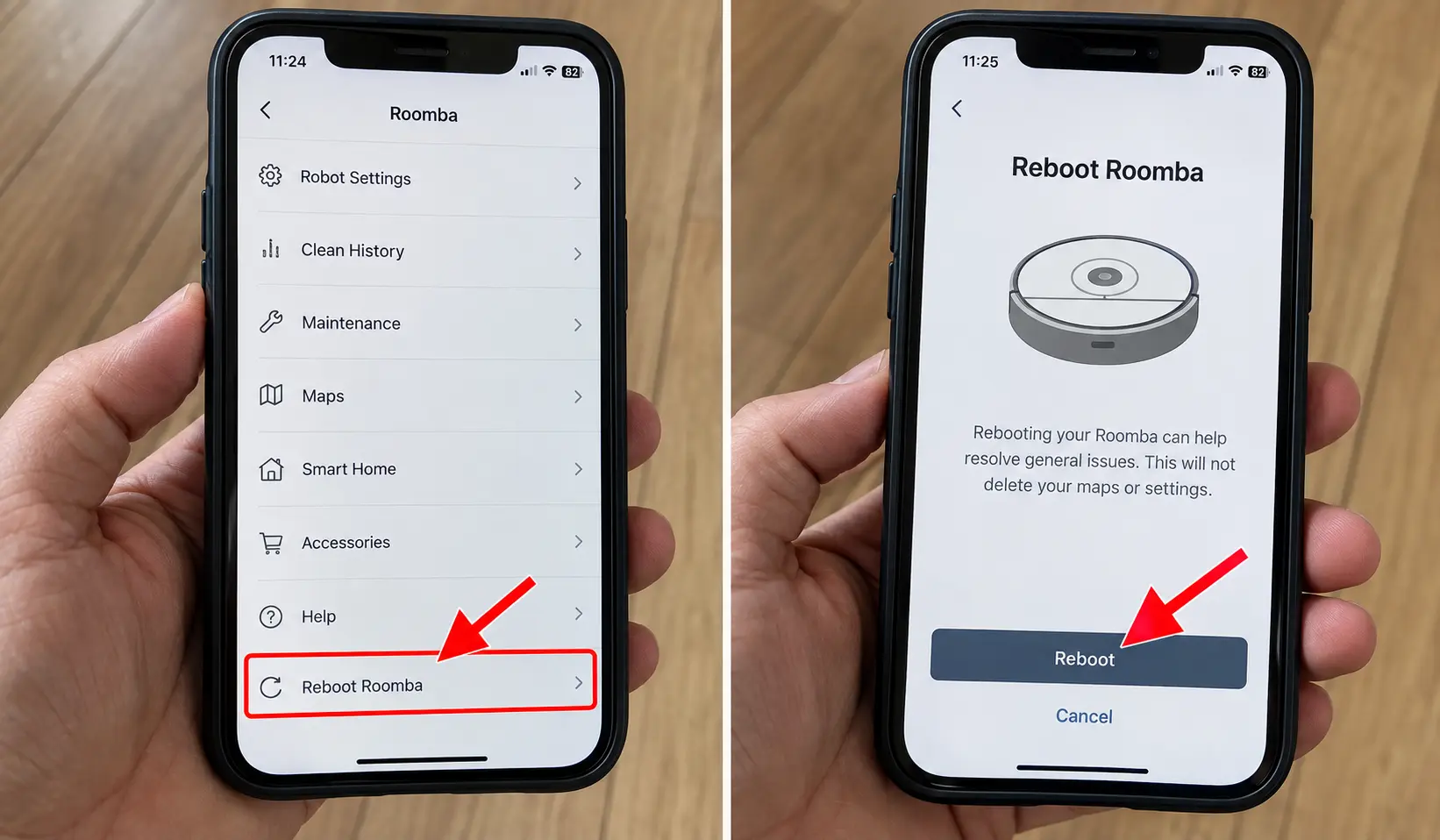
Now, after the restart, send the robot on a short 5-minute cleaning run before you try anything more destructive. If it docks, maps a room, and reports back to the app, you are done. You just reset the robot vacuum without losing the map.
How to Reset a Robot Vacuum’s Wi-Fi
A Wi-Fi reset is what you need when the app says your robot is offline, or when you changed your router, your network name, or your password. The robot still holds the old network details, so it keeps trying to join a network that no longer matches.
Here is the general process:
- Check your phone’s network: You see, most robot vacuums only work on a 2.4 GHz Wi-Fi band, and many won’t connect on 5 GHz at all. Connect your phone to the 2.4 GHz network before you start.
- Put the robot in Wi-Fi reset mode: Hold two buttons for about 3 to 10 seconds until you hear a voice prompt or see the light blink.
- Add the robot again in its app: Treat it like a new device, even though you still own the same robot.
- Choose your 2.4 GHz network: Now, type the password carefully, because it is case sensitive, and keep the robot near the router during setup.
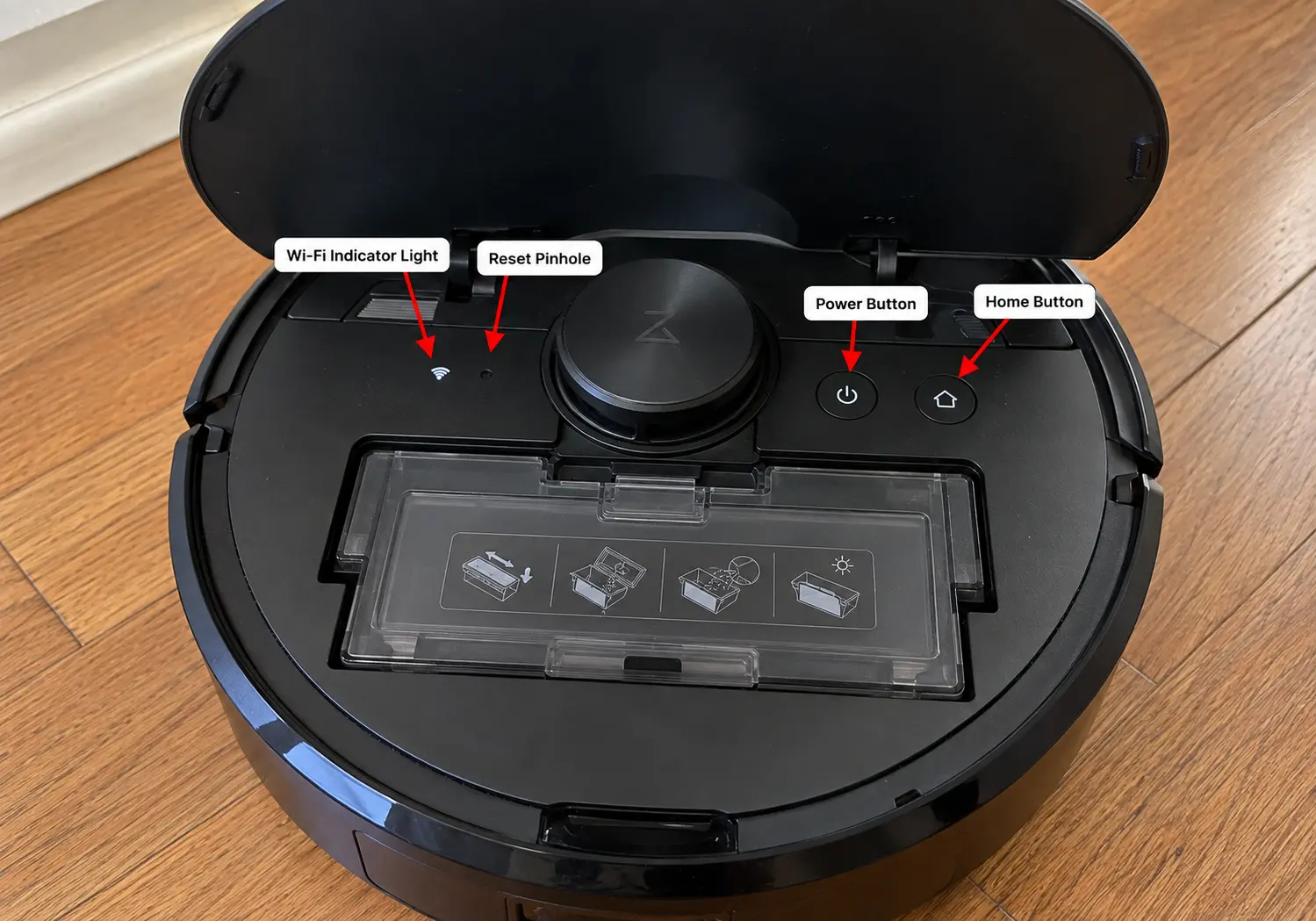
Warning: There is no universal Wi-Fi reset combo. So, if the robot never says “Resetting Wi-Fi” and the light never blinks slowly, stop and look up your exact series. Generally, holding the wrong pair can trigger a factory restore on some Eufy and Roborock units.
Robot vacuum still won’t connect after resetting Wi-Fi
- Confirm the phone is on 2.4 GHz, not 5 GHz. Split dual-band SSIDs if the router hides both under one name.
- Move the robot and phone within a few feet of the router for the first pair. Thick walls wreck pairing.
- Turn on Bluetooth, Location, and Local Network access for the app. iOS 14 and later will silently block pairing without those.
- Forget any leftover robot hotspot in the phone’s Wi-Fi list (names like ECOVACS-XXXX or the brand plus digits).
- Disable VPN, private Wi-Fi address, and AP isolation / client isolation on guest networks.
- Reboot the router for 30–60 seconds, then the phone, then the robot.
- Avoid special characters in the Wi-Fi name or password if pairing keeps failing. Several makers warn about that.
- Try a phone hotspot as a test. If the robot joins the hotspot, the home router is the problem, not the vacuum.
How to Factory Reset a Robot Vacuum Cleaner
A factory reset is the last step, not the first one. It wipes the robot’s stored data, so you lose maps, schedules, Wi-Fi details, and cleaning preferences.
There are two ways to do it, and the app method is usually the better one.
Robot vacuum factory reset using the manufacturer’s app
- Open the brand’s app and check that the robot shows as online.
- Select your robot and open its settings, which you can usually find under a menu named Settings, More Settings, About, or Device Info.
- Choose Factory Reset, Restore Defaults, Remove Device, or Delete Device. The wording changes by brand, and on some brands, removing the device triggers the reset on its own.
- Confirm your choice and wait a few minutes while the robot restarts and the app loses its connection.
- Add the robot again as a new device when it comes back.
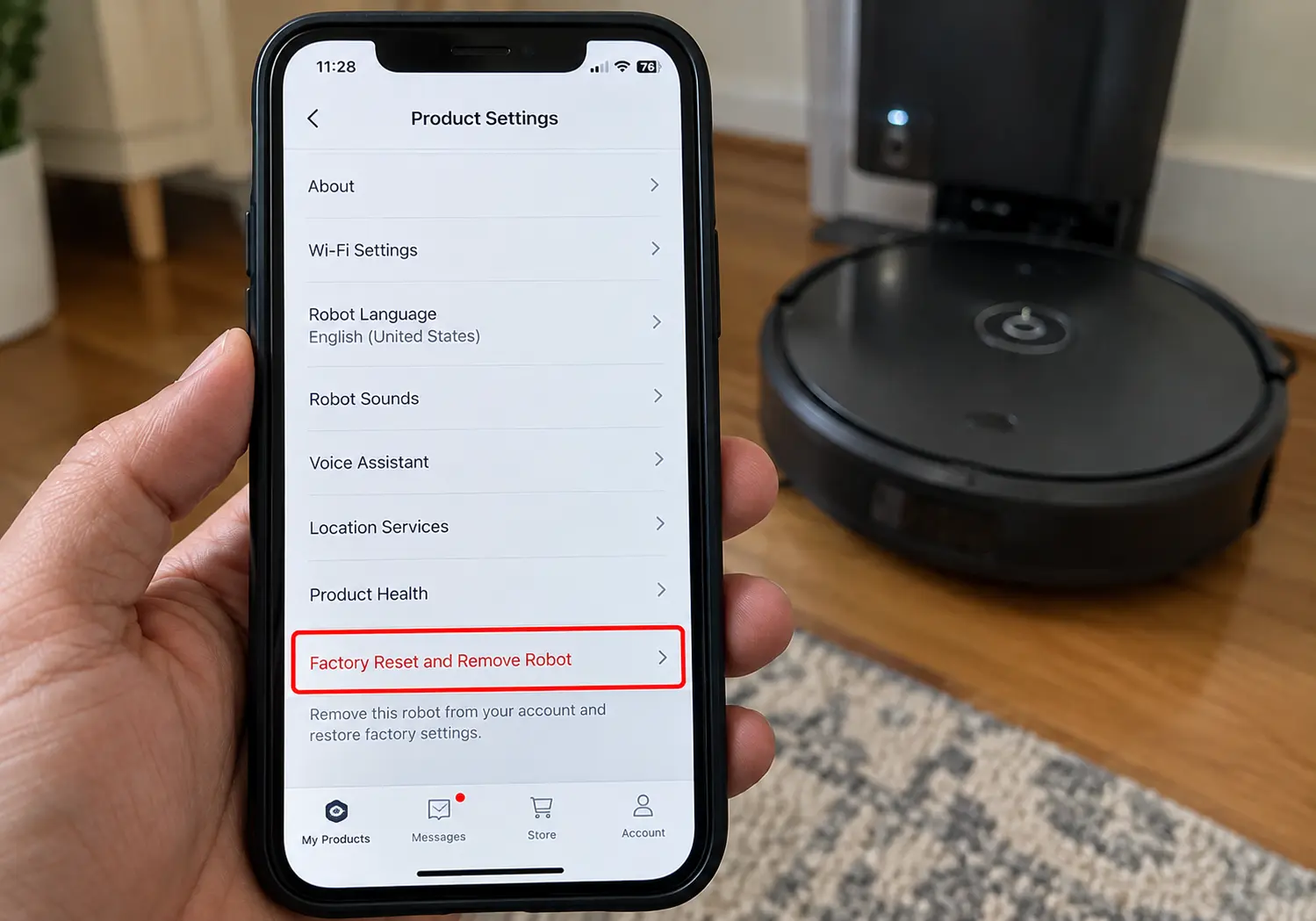
Quick Tip: The app route does more cleanup than buttons, since an app reset removes the robot from your account and the cloud. A button reset leaves your cloud data, app data, and account link in place, which matters a lot if you plan to sell the robot.
Factory reset using buttons on the robot
You must do this when the app will not connect, or when you need to wipe a robot that is leaving the house.
- Charge the robot to at least 50% and take it off the dock unless the brand says otherwise.
- Use the exact hold for your series from the brand section below. Do not mix.
- Keep holding until you get a confirmation: a voice prompt, a beep, a swirling light ring, or a restart chime.
- Release and wait.
- Confirm the app no longer shows the robot online. Then add it as a new device, and set up a robot vacuum again.
How to Reset Popular Robot Vacuum Cleaner Brands
| Brand | Restart | Wi-Fi reset | Factory reset | Important note |
|---|---|---|---|---|
| iRobot Roomba | App reboot, or hold CLEAN/POWER 9–20 s off dock | App: Product Settings → Wi-Fi Settings → Reconnect | App remove/factory reset, or model-specific 2- or 3-button hold | Hold times differ by series |
| Roborock | Power off/on, or cover Reset button | Hold two top buttons until “Resetting WiFi” | Hold a top button + Reset until “Restoring factory settings” (~5 min) | Wi-Fi reset does not wipe maps |
| Shark | Off base, hold DOCK 5–7 s, then reseat on base | Hold DOCK + CLEAN ~5 s until Wi-Fi blinks | Hold CLEAN + DOCK ~30 s on many models | 2.4 GHz only |
| Eufy RoboVac | Hold power to shut down, then power on | Model-specific 3–10 s hold; slow blue flash | X8 two-button 5 s; some models use a pinhole Reset | X8 Wi-Fi reset also factory-resets |
| Ecovacs Deebot | Power switch off 10 s, then on | Short-press RESET ~1 s, or charge + spot 3 s | Open cover, pull rubber plug, long-press RESET 5–6 s until startup music | Short press = Wi-Fi; long press = factory |
| Dreame | Cover Reset button for a system restart | Cover off, hold Spot + Dock until “Waiting for network configuration” | Hold Reset until “Starting to restore factory settings” | System reset already clears schedules and Wi-Fi |
| Narwal | App power off/on, or dock reboot | App: Settings → Device → Reset Network | Freo X Ultra: hold CLEAN ~10 s; older Freo: HOME + SPOT + CLEAN ~10 s | Base and robot may need re-pairing |
| Xiaomi | Cover Reset, or power cycle | Hold Power + Dock until “Resetting Wi-Fi” | Hold Dock 5 s, then hold Dock 5 s again on many models | Use Mi Home / Xiaomi Home |
What to Do After Resetting Your Robot Vacuum
A basic reboot usually needs no extra work. A Wi-Fi reset needs pairing. A factory reset needs a full setup again. Do the follow-up in one pass so you do not rediscover missing rooms a week later.
- Re-add the robot in the official app: Delete any old ghost device first, so you do not pair to the wrong entry.
- Connect to 2.4 GHz Wi-Fi: Stand near the router. Grant Bluetooth, location, and local-network permissions. Wait until the status is online, not “connecting.”
- Install firmware: Check for updates before the first mapping run. A factory restore may have rolled software backward, especially on Roborock.
- Rebuild or restore the map: Now, if the app saved a map, restore it. If not, run a full mapping pass with lights on, doors open, and clutter picked up. Also, you must keep pets and kids off the floor during that run.
- Recreate rooms, no-go zones, and virtual walls: Draw carpet bans, pet bowls, and cable piles before you resume scheduled cleaning.
- Restore schedules and suction / mop preferences: Set quiet hours, room order, and mop water level the way you had them.
- Reconnect Alexa, Google Home, or Siri shortcuts: Factory reset drops those links. Disable the old skill device, then link the robot again.
- Run a short test clean. One or two rooms is enough: Confirm it returns to the dock, empties if it has a station, and reports a completed job in the app.
Robot Vacuum Still Not Working After a Reset?
If the same fault is still there after a reboot, a Wi-Fi reset, or a factory reset, stop resetting. Well, repeated factory resets on a physically faulty robot accomplish almost nothing.
| Still happening | Check next |
|---|---|
| Won’t turn on | Battery, dock power, wall outlet, power switch under the cover |
| Won’t charge | Dirty charging contacts, dock alignment, damaged power brick |
| Spins or behaves strangely | Hair in wheels, bumper stuck, cliff sensors dirty, lidar blocked |
| Weak cleaning | Full bin, clogged filter, wrapped brush, blocked intake |
| Map stays wrong | Dirty sensors, dock moved, furniture changed, needs a fresh mapping run |
| Error returns immediately | Look up the exact error code in the official app or manual |
| Still offline | 2.4 GHz, router isolation, app permissions, VPN, distance from router |
Read other guides as well:
FAQs About Resetting a Robot Vacuum
Does resetting a robot vacuum delete the map?
A soft reset or restart does not delete the map. A Wi-Fi reset usually does not delete the map either. A factory reset typically does. Also, some vacuum brand models let you save “Imprint Smart Maps” during an app factory reset. So, if you only want a new floor plan, use a map reset or a fresh mapping run, not a full wipe.
Can I reset a robot vacuum without losing its settings?
Yes, and a restart is built for exactly that kind of situation. A simple reboot never deletes maps, schedules, or preferences. But again, avoid the full factory reset, and be careful with the Wi-Fi reset on some Eufy models.
Why won’t my robot vacuum reset?
The usual causes are a low battery, the wrong button combination for your model, letting go before the robot signals, or failing buttons. You must charge the robot on its dock for about 30 minutes, then hold the buttons until you hear or see a signal. Now, if nothing responds after that, contact the manufacturer for help or a repair.
Should I factory reset my robot vacuum before selling it?
Yes, you should, because a robot vacuum factory reset removes your maps, Wi-Fi details, and personal settings. It also clears the account link and smart speaker connections, so use the app method while the robot is online. Afterward, open the app and confirm that the robot no longer appears in your device list.
How long does a robot vacuum factory reset take?
The robot vacuum factory reset itself only takes a few minutes, like 1-5 minutes. But setting everything up again takes longer, because you have to reconnect Wi-Fi, update firmware, and rebuild maps and schedules.
Do I need to remap my house after a factory reset?
In most cases, yes. Unless the app restored a saved map, you need a new mapping run. So, first, open interior doors, pick up cables, and leave the dock where it will stay. After the map builds, redraw rooms and no-go zones before you turn schedules back on.